

How to Add Site ID Users to Sumo?
 Emel Dalabasmaz
Archival steps (Sumo Account Manager)
To add Site ID users to a leftover Sumo account:
1. Log in to the Account Manager (historically sumo.com/sites; now try app.bdow.com).
2. Locate and click on the blue "Add User" button.
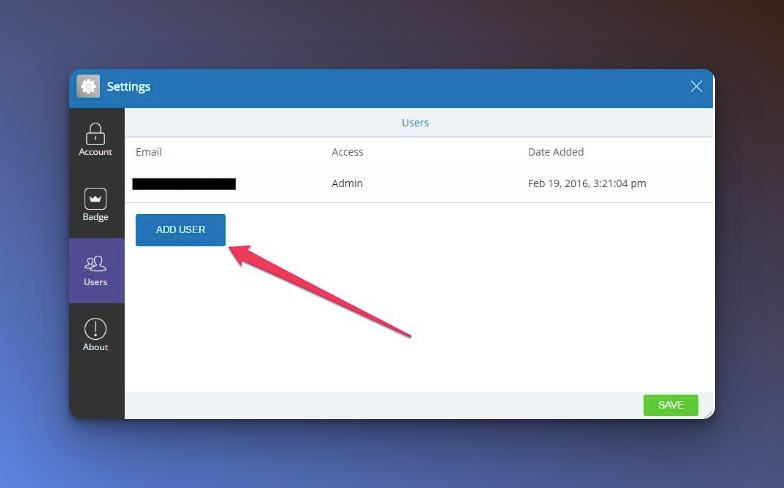
3. In the form that appears, enter the user's email address.
4. Select whether the user will be an Admin or User.
Admins have access to all of your Site ID's apps, settings, and billing. Users have access to apps and settings but not billing, and they cannot add new users.
5. Click the "Save" button in the form's bottom-right corner.
The user will receive an email with instructions on setting up their account.
If the old Account Manager is gone on your login, use BDOW's current team/user screens or email help@bdow.com with the Site ID from your embed. Docs: help.bdow.com.
Written and reviewed by

SEO Executive at Flatart
Emel Dalabasmaz graduated in Advertising and Public Relations from Anadolu University. She began in social media and carried that grounding — content, brand communication and performance — into SEO. For more than ten years she has worked on growth for brands across a range of industries, pairing a communications perspective with data and technical analysis to build a digital presence that holds up over time.
- Education
- Advertising and Public Relations, Anadolu University
- Writes about
- Popup builders, Conversion rate optimization, On-site messaging, SaaS pricing research, SEO, Technical SEO, Content strategy, Digital marketing