

How to Integrate Sumo with BigCommerce
 Emel Dalabasmaz
Archival steps (Sumo snippet in Script Manager)
To install a leftover Sumo snippet on BigCommerce:
1. Log in to your BigCommerce dashboard and navigate to the Storefront menu.
2. Click on Script Manager and select "Create a Script."
3. In the Script Manager, select the Footer, All pages, Essential, and Script options and paste the Sumo installation code in the Script field. (The code lived under the "install" tab on the old Sumo site; BDOW still issues a Site ID embed.)
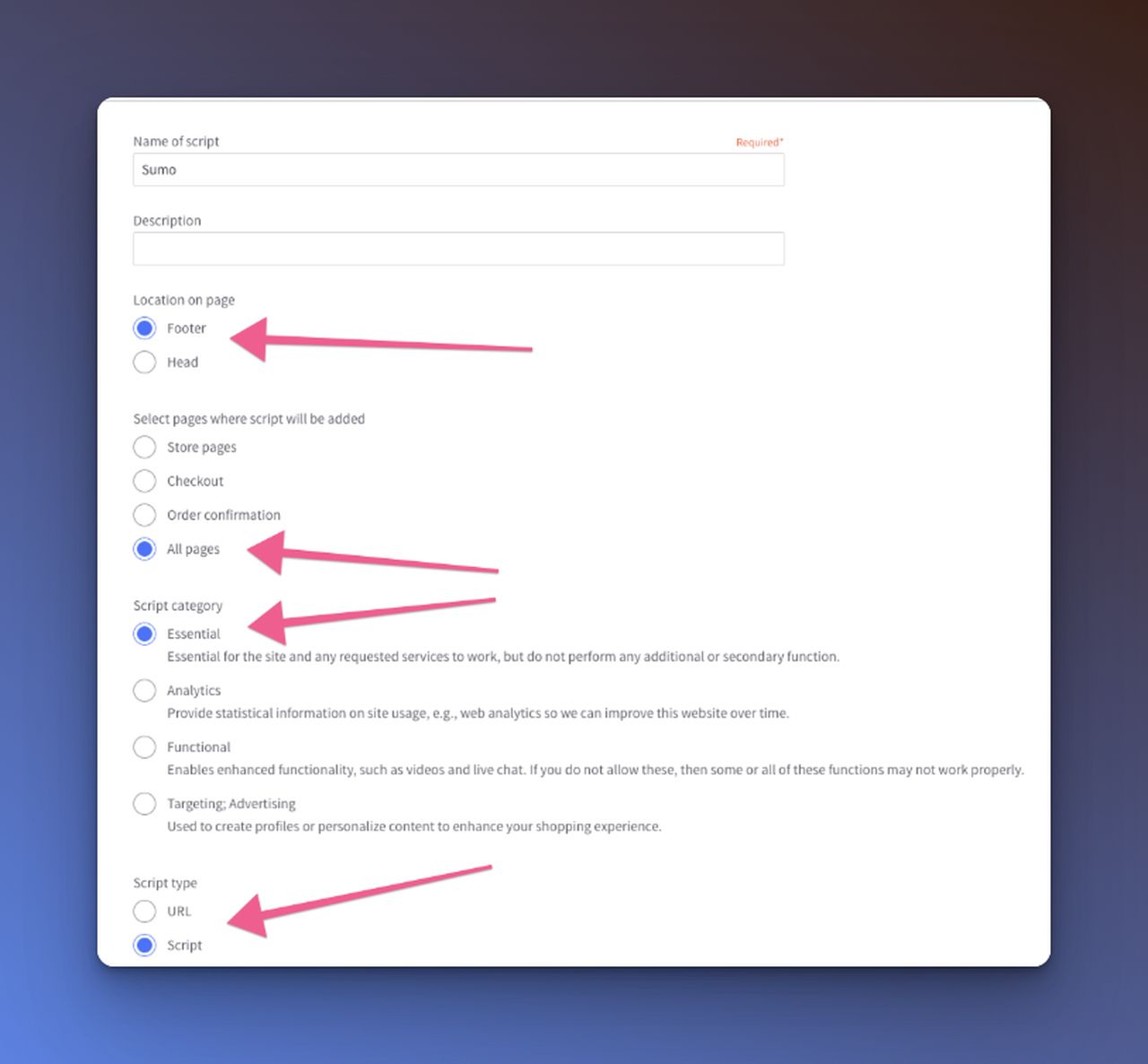
4. Click "Save" to finalize the installation.
5. The old management URL was sumo.com/sites. Use app.bdow.com now.
Note
If you are using Optimized One-Page Checkout, you may need to update your theme to enable support for footer scripts. That caveat was true in 2023 and is still the kind of thing a Script Manager install can miss.
Written and reviewed by

SEO Executive at Flatart
Emel Dalabasmaz graduated in Advertising and Public Relations from Anadolu University. She began in social media and carried that grounding — content, brand communication and performance — into SEO. For more than ten years she has worked on growth for brands across a range of industries, pairing a communications perspective with data and technical analysis to build a digital presence that holds up over time.
- Education
- Advertising and Public Relations, Anadolu University
- Writes about
- Popup builders, Conversion rate optimization, On-site messaging, SaaS pricing research, SEO, Technical SEO, Content strategy, Digital marketing