

How to Integrate Sumo with Mailchimp
 Emel Dalabasmaz
Archival steps (Sumo launcher → Mailchimp)
The Mailchimp connection on Sumo pushed new subscribers into a chosen list and could honour Mailchimp's double opt-in.
1. Log into Sumo (now BDOW).
2. Open the Launcher Settings menu and select Settings.
3. Click on the Integrations tab.
4. Select MailChimp from the list of Email Service Providers.
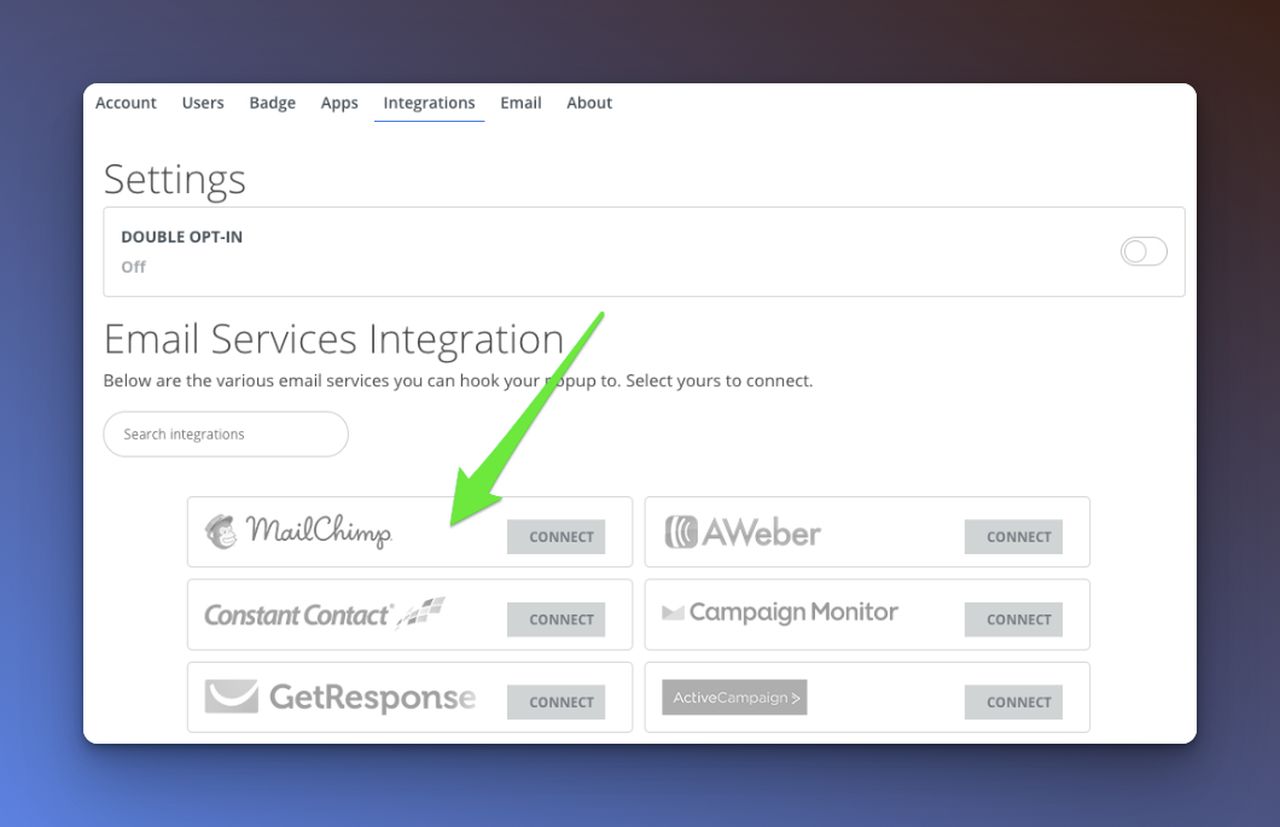
5. Click on the Connect button.
6. Provide your Mailchimp credentials (username/email, password, and captcha if shown).
7. Select a list to connect to.
8. Decide whether to use double opt-in (Mailchimp's confirmation email).
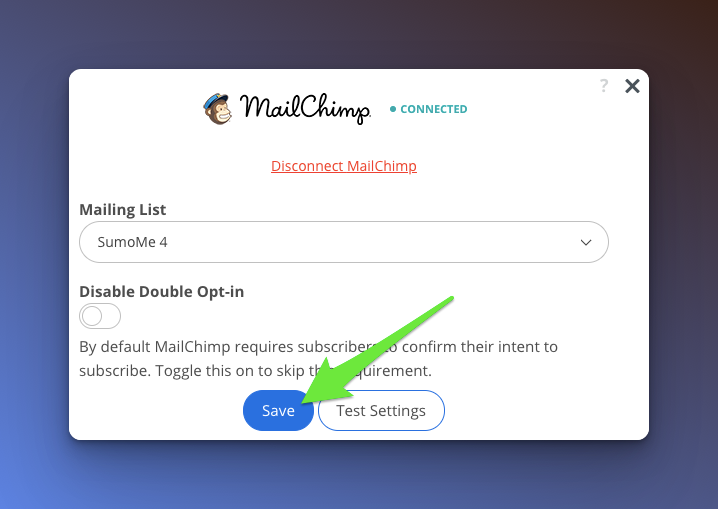
9. Click Save.
If the current BDOW screen uses OAuth instead of a password, follow BDOW's article. Do not type a Mailchimp password into a page you do not recognise as BDOW or Mailchimp.
Written and reviewed by

SEO Executive at Flatart
Emel Dalabasmaz graduated in Advertising and Public Relations from Anadolu University. She began in social media and carried that grounding — content, brand communication and performance — into SEO. For more than ten years she has worked on growth for brands across a range of industries, pairing a communications perspective with data and technical analysis to build a digital presence that holds up over time.
- Education
- Advertising and Public Relations, Anadolu University
- Writes about
- Popup builders, Conversion rate optimization, On-site messaging, SaaS pricing research, SEO, Technical SEO, Content strategy, Digital marketing